
留白
Open a page and start writing, come back anytime to pick up where you left off. The whole window is the page, formatting appears as you type, and nothing is lost when you close it — your files stay plain Markdown.
Liubai is Mac-only for now — there's no Windows version yet.
Liubai is Mac-only for now — there's no Linux version yet.
This is a Mac app — open this page on your Mac to download it.
001 / 004
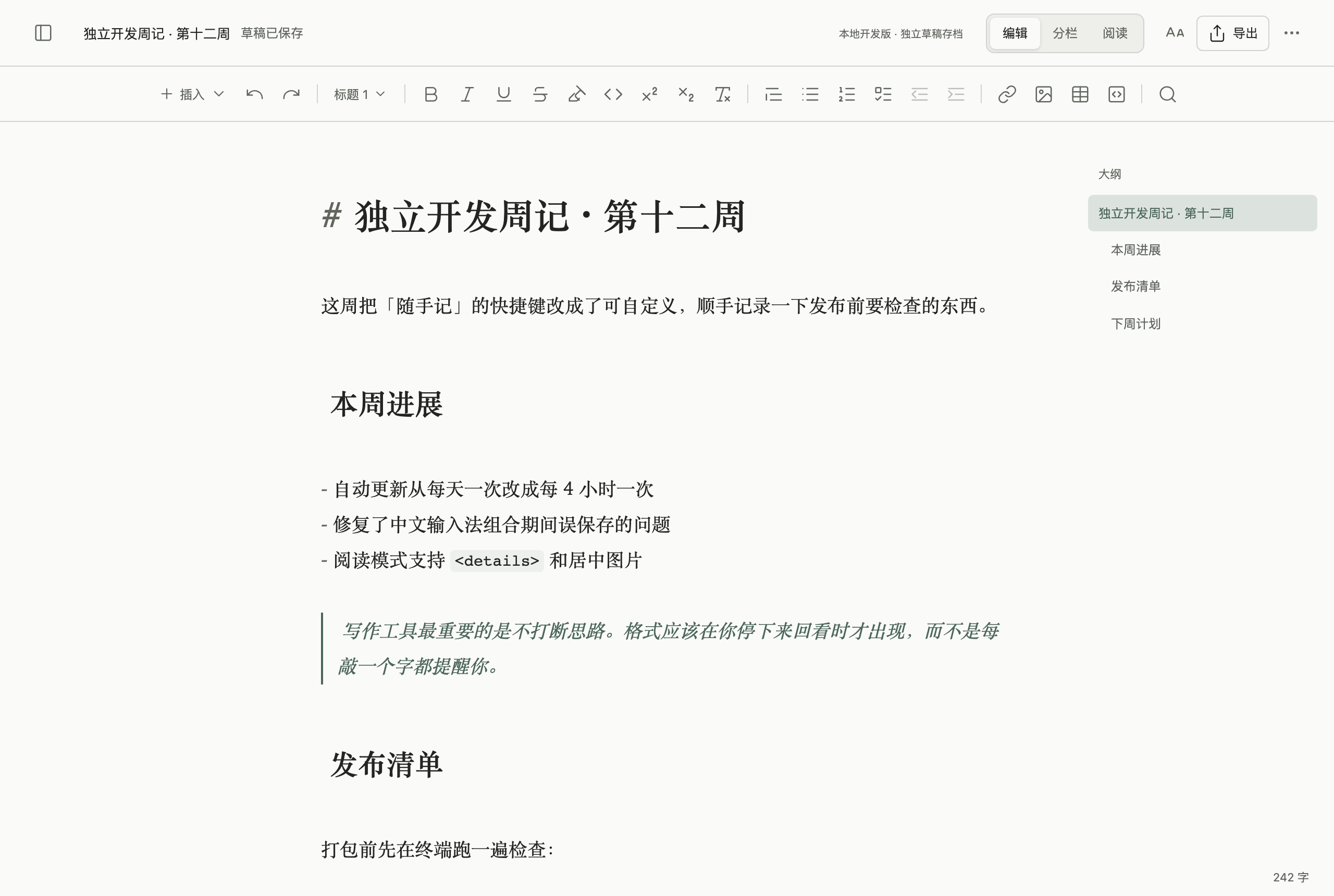
Open and write — the whole window is the page
No need to create a file, name it or pick a folder first — open Liubai and start typing; anything unsaved is kept as a local draft and is still there when you come back. Everything below the top bar is the page, your text stays centered and the word count sits in the corner. Headings, lists, bold and code take shape as you type, while the source stays clean Markdown.
 点击放大
点击放大
002 / 004
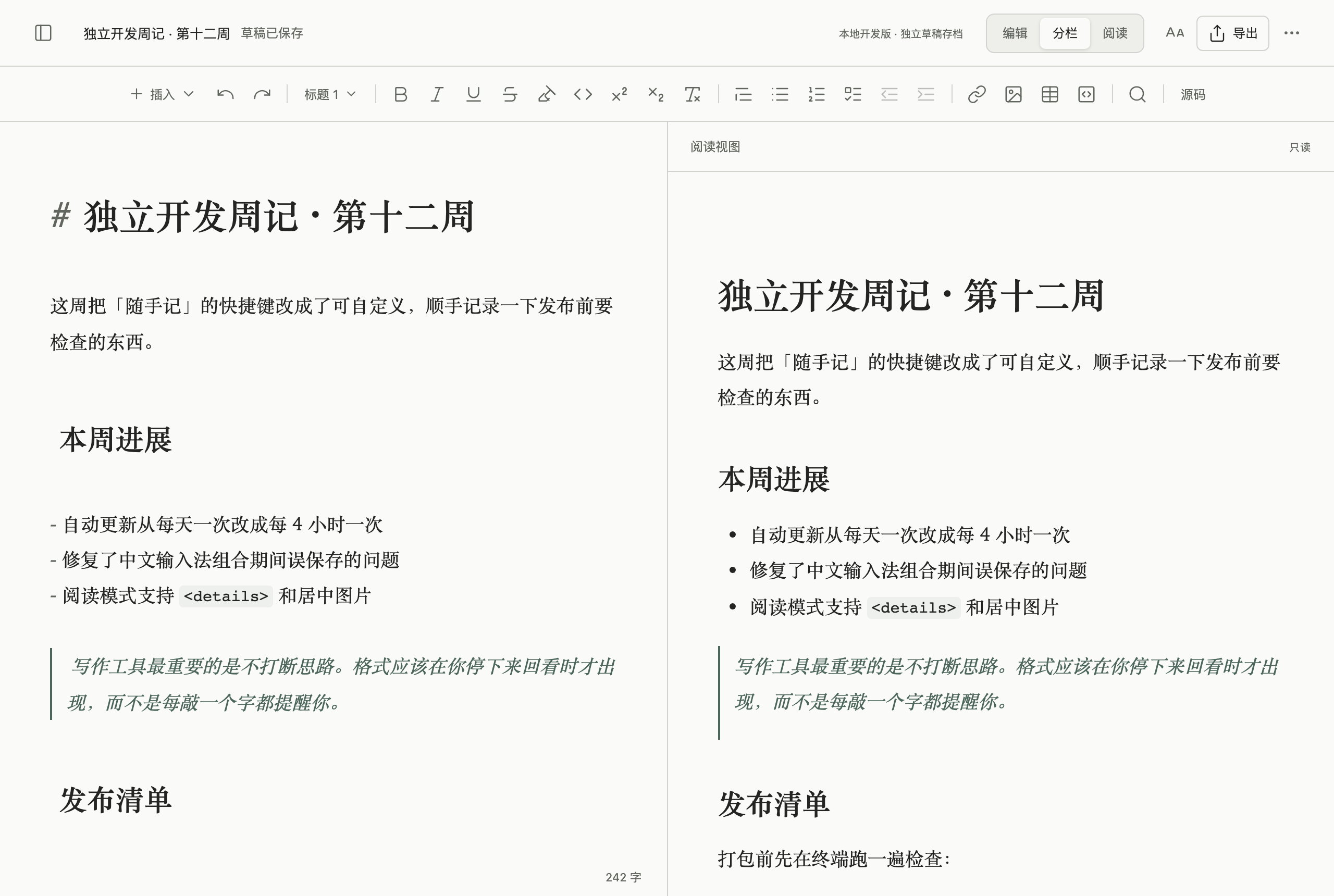
Write on the left, read the result on the right
In split view the two panes are equal width: live-formatted source on the left, a read-only rendered view on the right. As your cursor moves, the reading pane follows to the matching block — and scrolling the reader never yanks the editor around. You can also reveal the raw Markdown source in split view, sharing the same text and undo history.
 点击放大
点击放大
003 / 004
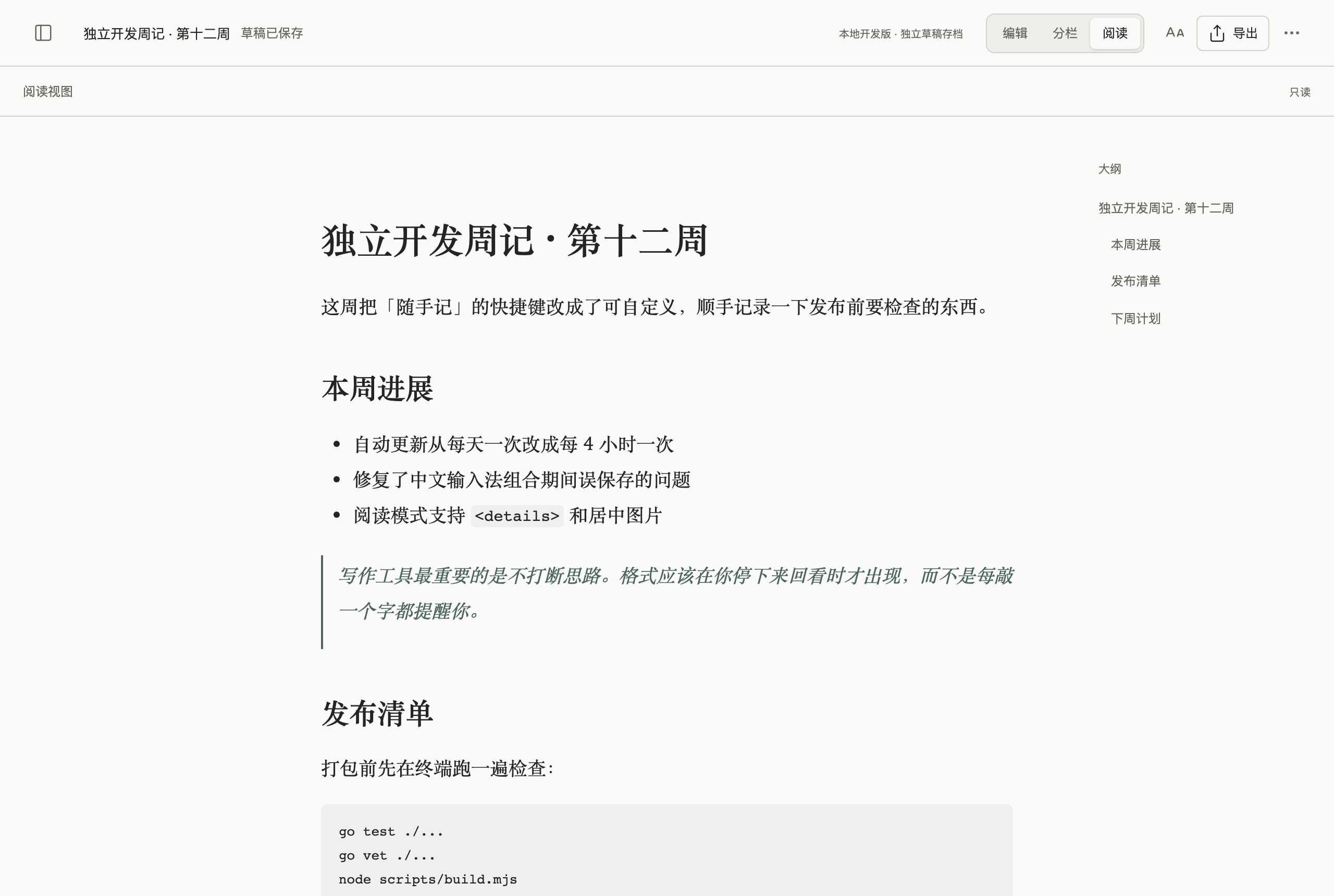
Switch to reader mode in one keystroke
Press ⌘⇧R for reader mode: the editor hides and you get a read-only, fully rendered page — footnotes, callouts, syntax highlighting, bare links and inline HTML all show up, with front matter folded into document properties. Press it again to return to your layout. When you're done, export to PDF, an image ZIP, HTML or rich text from one menu.
 点击放大
点击放大
004 / 004
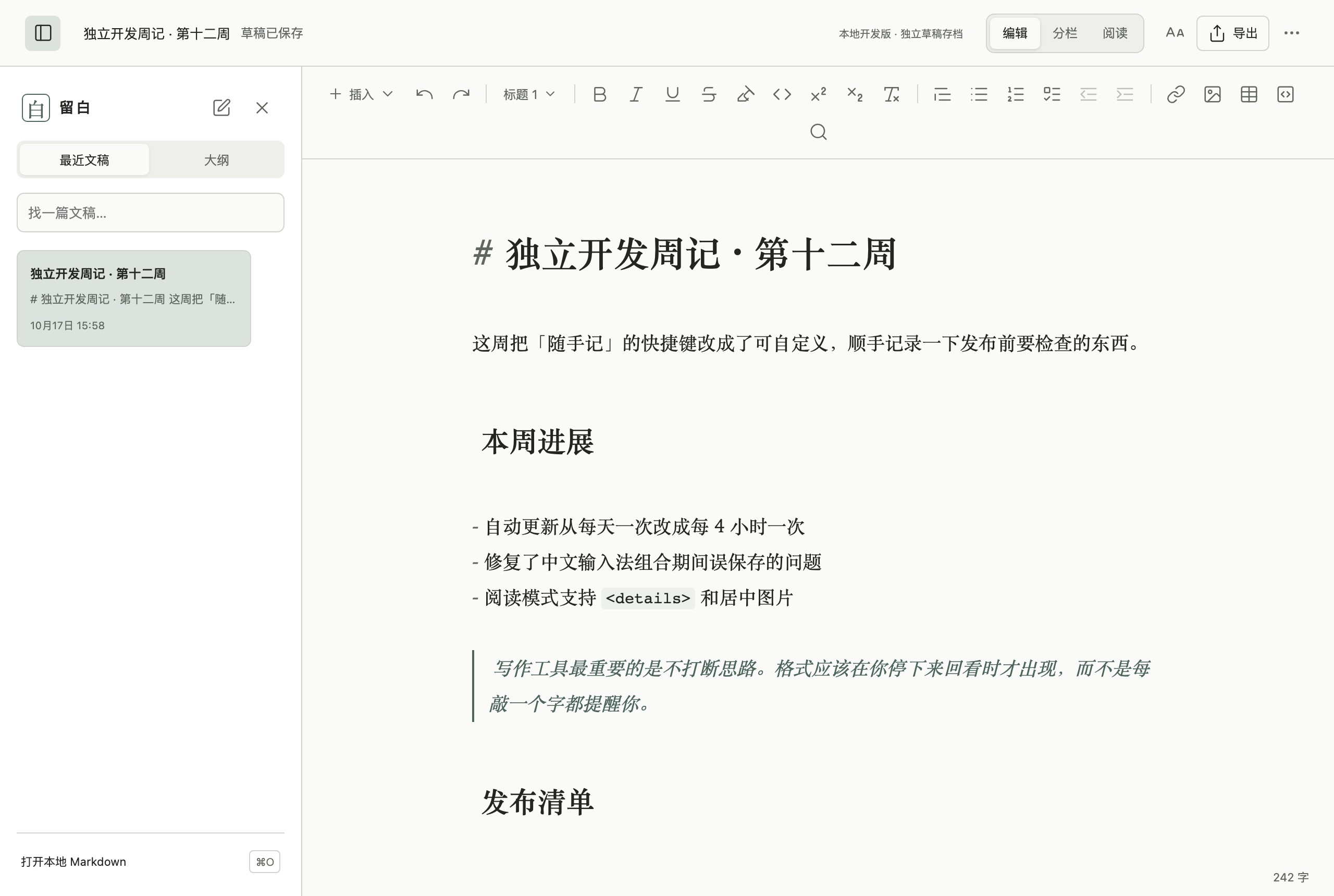
Drag blocks, type a slash, reshape as you go
Hover the left of a paragraph and a handle appears: drag it to reorder, click to select the whole block, then convert, duplicate, delete or move it; use ⌥⇧↑/↓ to move by keyboard and ⌘/ for the block menu. Type “/” on an empty line to insert headings, lists, tasks, quotes, code, tables, images and callouts — searchable in English or Chinese pinyin. The sidebar's recent documents and outline are always there, with the current section highlighted.
 点击放大
点击放大
Your files & privacy
Liubai is a local writing tool, not a cloud service. Your documents stay yours.
Plain .md files
Saving writes back to the path you chose — no locked format, no private library; any Markdown tool can open it. Finder tags and creation time are preserved on write.
Drafts stay on this Mac
Unsaved work lives in ~/Library/Application Support/Liubai/, written atomically. No account, no uploads. Read-only files are never overwritten.
No ads, telemetry or cloud sync
The app collects nothing online; checking for updates only talks to GitHub Releases and never sends your content anywhere.
Covered when things conflict or crash
External changes load automatically; if both sides changed, it pauses and lets you choose, saving the other version as a recovery copy first — your writing is never silently lost.
Getting started
Drag it into Applications and you're set. Keep Liubai in /Applications or ~/Applications so it can update itself in the app later.
Three steps to start writing
- Open the downloaded DMG, drag Liubai into Applications and open it
- Just type on the page — no need to save first; your work is kept as a draft automatically
- Later press ⌘S to save the document as .md, or use Split / Read to see the finished page
If Gatekeeper blocks the first launch, allow it in System Settings → Privacy & Security.
You'll be notified of new versions in the background, or check anytime from Liubai → Check for Updates…